Remove clicks and pops from vinyl rips
Drop a vinyl recording into MiniMax Converter and Vinyl declick takes out the clicks, pops and crackle while the music stays as it was. Clean the whole side or only the parts you select, remove the surface noise too, and listen before you save. Everything runs on your computer.
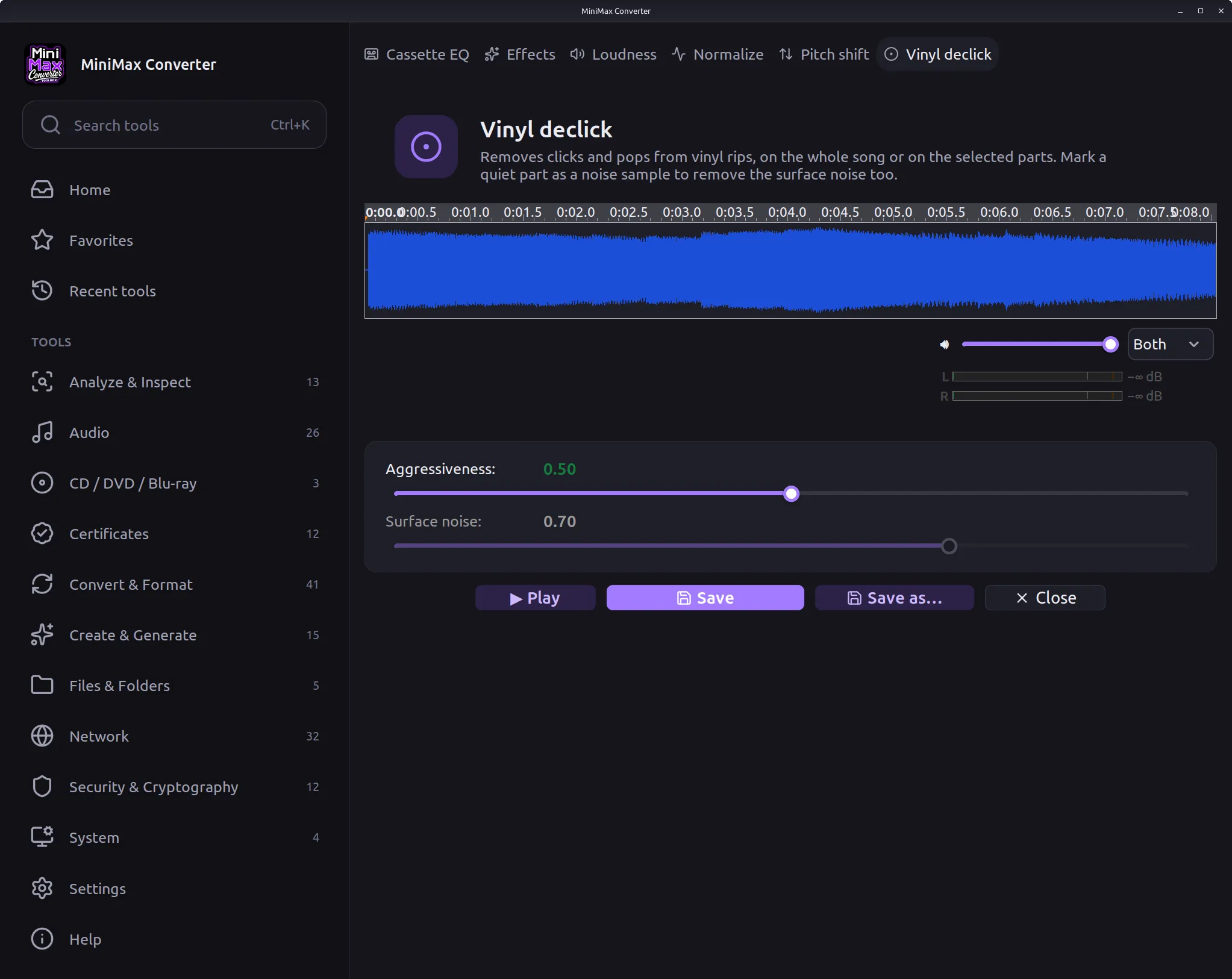
How to use it
- Drop an audio file on MiniMax Converter and choose Vinyl declick, or open Tools > Audio > Vinyl declick.
- Set Aggressiveness: higher removes more clicks but can touch the music too. Press Play to hear the result before you save.
- To clean only some places, drag on the waveform to select them; without a selection the whole song is cleaned. For the surface noise, select a quiet part, right-click it, choose Use as noise sample and set Surface noise.
- Press Save to keep the format of the original, or Save As to choose the name and format.
Clicks and pops, not the music
The declick filter looks for short impulses (clicks, pops and crackle from dust and scratches) and rebuilds those few milliseconds from the sound around them. Aggressiveness sets how small a click it reacts to and how wide a click it repairs. Start in the middle, go higher for a crackly record, and lower if cymbals or voices start to sound dull.
Only the parts that need it
A record is often clean except for one scratched passage. Drag on the waveform to select that part, or several parts, and only they are cleaned; the rest of the song is saved exactly as it was. Click the waveform to play from there, drag with the right mouse button to move it and use the wheel to zoom in on a click.
Surface noise too
Between the clicks there is often a steady hiss or rumble from the record surface. Select a quiet part, such as the run-in groove or a pause between songs, right-click it and choose Use as noise sample: it turns light blue. The app learns that noise and removes it from the whole recording; Surface noise sets how much.
Listen first, save when it sounds right
Play plays the cleaned sound with level meters for both channels, so you can change a slider and hear the difference straight away. Long sides are processed in pieces on all processor cores at once, so even a whole album side is quick.
Private and offline
Nothing is uploaded: your recordings stay on your computer. It works with the audio formats MiniMax Converter opens, such as WAV, FLAC and MP3.
Questions and answers
Vinyl declick or Restore audio?
Vinyl declick removes short sounds: clicks, pops and crackle. Restore audio removes steady noise: tape hiss and mains hum. A vinyl rip usually needs Vinyl declick; use Restore audio as well if there is hum.
Will it change the music?
At moderate settings only the clicks are touched. Very high settings can soften sharp sounds such as cymbals, so press Play and compare before you save.
Can I clean just one scratch?
Yes. Select the part with the scratch on the waveform and only that part is cleaned; the rest of the song stays exactly as it was.
Is my recording uploaded anywhere?
No. Everything runs on your computer.
Related tools
Get MiniMax Converter
Cross-platform desktop app. Linux free for non-commercial use; Windows & macOS: 7 days free, then a one-time €20 license. No subscription, no telemetry, no account.