Mix songs with crossfades and AI beatmatching
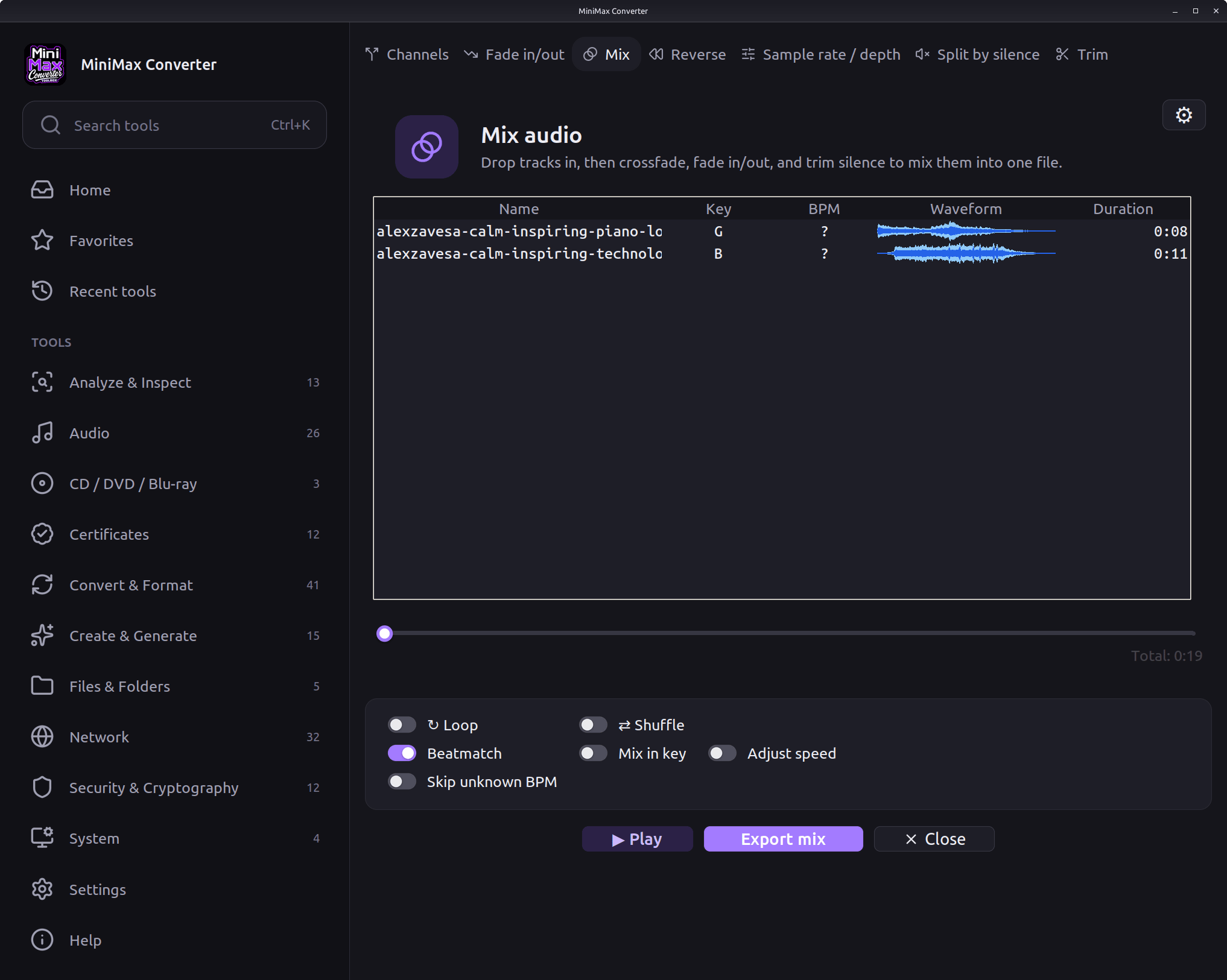
Drop songs or a whole folder on Mix audio. Every song shows its key, BPM and waveform. Press Play: each next song crossfades in where the music of the playing one ends, and with Beatmatch the AI lines up the beats and bars. Export mix saves the whole set as one file. It all runs on your own computer.
How to use it
- Open Tools > Audio > Mix and drop songs or a whole folder on the list. MP3, FLAC, WAV, M4A, OGG and other formats can be mixed together.
- Drag a row to change the order; double-click a song to play it.
- Tick Beatmatch and, if you want, Skip unknown BPM, Mix in key, Adjust speed, Shuffle or Loop.
- Press Play to hear the mix with all its transitions.
- Press Export mix, choose the format and save the mix as one file.
Crossfades where the music ends
Mix audio finds where each song's music really ends, without its silent or fading tail, and brings in the next song there: one fades out while the other fades in. You set the length of Fade in and Fade out (up to 30 seconds) and choose one of seven fade curves. Trim silence at start and end and Normalize volume, which plays every song at the same loudness, are one tick away.
Beatmatch
With Beatmatch on, the next song comes in at the tempo of the playing song, on its beat, then glides back to its own tempo over 8 bars. The tempo is changed with a high-quality time stretch (Rubber Band), so the pitch stays the same. Songs more than 8% apart in tempo, or without a steady beat, are simply crossfaded. Adjust speed goes one step further: before the transition, the playing song eases to the next song's tempo, at the same pitch.
Mixing with AI
The Beat This! AI model finds every beat and the first beat of each bar, so Beatmatch lines up whole bars, and Mix on phrases starts and ends each transition on whole 8-bar phrases: the next song's main part comes in right where the playing song ends. The AI also corrects the BPM when the classic detector locked onto the wrong beat, for example a song read as 165 BPM that is really 120. In the settings, Mix with AI is Small (12 MB), Final (85 MB, a little more accurate) or off. The model is downloaded once and then runs offline.
Which song comes next
Skip unknown BPM leaves songs without a steady beat (their BPM shows ?) out of Play and Export. Mix in key picks each next song in the same or a compatible key, for a harmonic mix. Shuffle plays the songs in a random order (Export keeps the list's order), and Loop starts again from the first song when the last one ends.
Key, BPM and waveform for every song
The list shows each song's name, Key, BPM, Waveform and Duration, with the total time below. Keys and tempos are measured in the background, several songs at once: right-click > Analyse keys and BPM, or let every added song be analysed. If a BPM is half or double the real one, right-click > BPM x2 or BPM /2 fixes it. Click a song's waveform to jump within it while it plays; Ctrl+L finds the playing song in the list.
Preview, then export
Play plays the mix with every transition exactly as it will sound. Space plays and stops, Left and Right jump 10 seconds, N skips to the next song. Right-click a song to queue it next or send it to Stems, or add a song from a web address with Add from URL. Export mix saves the whole mix as one MP3, M4A (AAC), Opus, OGG, FLAC, WAV or AIFF file.
Settings
The gear on the Mix audio screen opens Defaults > Audio > Mix audio: the fade lengths and curves, Trim silence at start and end, Normalize volume, Beatmatch, Mix on phrases, Mix with AI and the analysis of every added song.
Questions and answers
Can I mix songs in different formats?
Yes. Drop MP3, FLAC, M4A, WAV, OGG and other files together; the mix is saved in the format you choose.
What does the AI do?
It finds the beats and bars of every song with the Beat This! model, so Beatmatch and Mix on phrases line up whole bars and phrases, and it corrects a BPM that the classic detector got wrong. It runs on your own computer.
Does it work offline?
Yes. Only the AI model is downloaded once, the first time, and Add from URL needs the internet.
Why does a song show ? as its BPM?
It has no steady beat, for example a slow intro or spoken word. It is still crossfaded as usual; tick Skip unknown BPM to leave such songs out.
Can I add a song from a URL?
Yes: right-click the list > Add from URL. The best audio is downloaded to your Downloads folder as MP3 and added to the list.
Related tools
Get MiniMax Converter
Cross-platform desktop app. Linux free for non-commercial use; Windows & macOS: 7 days free, then a one-time €20 license. No subscription, no telemetry, no account.