Edit PDF: change the text of any PDF, even a scan
Click a line or a paragraph, type, press Enter. The words stay real text in the PDF's own font where it can, paragraphs re-wrap in their original box, and scanned pages become editable with matching letters. Everything happens on your own computer - nothing is uploaded.
How to use it
- Drop one PDF into MiniMax Converter and click Edit text, or open Tools > Convert & Format > Edit PDF.
- Move the mouse over the page: lines and paragraphs get a blue box. Click one, retype it and press Enter (Esc cancels, Tab jumps to the next one).
- On a scanned page, or a scanned picture inside a typed PDF, click Read the text first; the lines it finds can then be edited the same way.
- To change a word everywhere, press Ctrl+F to find it or Ctrl+H to replace it (Cmd+Option+F on a Mac).
- Undo and Redo with Ctrl+Z / Ctrl+Y, then Save - the edited copy is saved next to the original as name_edited.pdf.
The Fit page button at the right of the toolbar keeps the whole page in the window, however you resize it.
A line, a whole paragraph
Click a single line - a name, a date, an amount on an invoice - and change it in place. Right-aligned columns stay right-aligned. Click any line of a paragraph and the whole paragraph opens as one text box: type freely and it re-wraps into its original width, keeping left, centred, right or justified alignment. Only the lines that really change are rewritten, so fixing one word usually touches one line. If the paragraph grows, the new lines go below at the same line spacing and the app warns you when they reach the text underneath.
Real text and matching fonts
The PDF stays a real PDF: the text you type is selectable and searchable, nothing is turned into a picture, and the rest of the page keeps its exact bytes and position. MiniMax writes with the PDF's own embedded font whenever it has every letter you typed. When it does not, the same family installed on your computer is used, or downloaded on request from the Google Fonts collection (2,000+ families under the SIL Open Font License or Apache 2.0, pinned to a fixed version and checked before use). Commercial fonts get their free metric twins: Arial and Helvetica become Arimo, Times becomes Tinos, Courier becomes Cousine, Calibri becomes Carlito, Cambria becomes Caladea.
Scanned pages
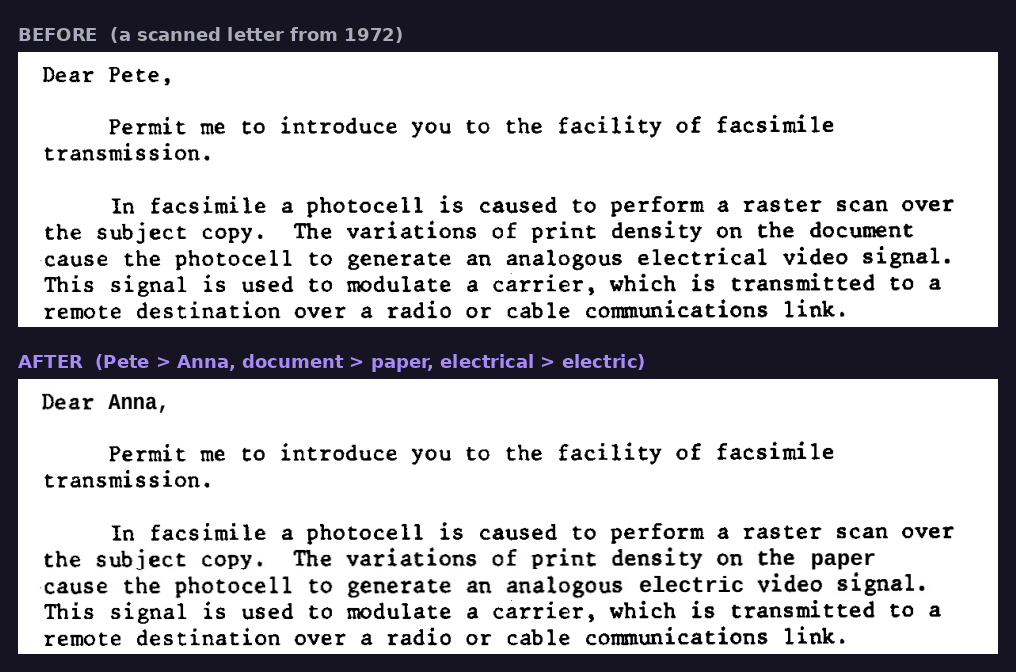
On a scan, Read the text finds every line with AI OCR on your own computer (Latin, Cyrillic and Japanese; Tesseract as a fallback), or uses the invisible text layer an earlier OCR left in the file. When you change a line, only the words that changed are erased - painted over from the paper around them - and written again in the installed font that looks most like the scan, at the same size, weight and ink colour. The rest of the line keeps its scanned pixels and moves left or right so it closes up. The new words are real text, so the page becomes searchable there too.
Find and replace
Press Ctrl+F and type: every match in the whole document is marked on the page, typed text and scanned pages that were read alike, and the count shows where you are ("3 of 12"). Ctrl+H (Cmd+Option+F on a Mac) opens the Replace row: replace the match you are on, or Replace all at once. Each replacement is a normal edit in the matching font, so the page looks as if it had always said that, and one Ctrl+Z takes a whole Replace all back. Match case and Whole words narrow the search.
Faint scans: hold Ctrl and drag
Old faxes and pale photocopies sometimes hide a line from the first reading. Hold Ctrl, the pointer turns into a crosshair, and drag a box over the faint part: MiniMax reads just that part again at a higher resolution with stronger contrast, at several sizes, and keeps the best reading. A line that was already read well is never overwritten by a worse guess.
Keyboard
Enter / Esc / Tab | Keep the line you typed / cancel it / go to the next line |
Ctrl+Z / Ctrl+Y | Undo / Redo |
Ctrl+F | Find in the whole document |
Ctrl+H | Find and replace (Cmd+Option+F on a Mac) |
F3 / Shift+F3 | Next / previous match (Enter, Shift+Enter, Up and Down work too) |
Ctrl+Enter | Replace all |
Ctrl + drag | Read a faint part of a scan again |
Ctrl + wheel | Zoom |
Page Up / Page Down | Previous / next page |
On a Mac, Cmd takes the place of Ctrl.
Questions and answers
Is the PDF uploaded anywhere?
No. Everything happens on your computer. Only when an edit needs a font you do not have, and you allow it, the free font is downloaded from Google Fonts - the request carries the font name, nothing from your document.
Does the rest of the page move when I change a line?
No. Only the text you changed is rewritten inside the page; everything else keeps its exact position. Text that follows on the same line is moved back to its original place, and in our tests the rest of the page stays pixel-identical.
What if the PDF font does not have a letter I type?
MiniMax uses the original font for every letter it has. If the same font family is installed, or is a free Google Fonts family, the whole line uses it; otherwise only the missing letters come from the closest matching font. Commercial fonts get their free metric twins (Arial to Arimo, Times to Tinos, Calibri to Carlito).
Can I edit a scanned document?
Yes. Read the text finds the lines with AI OCR on your computer. When you change a line, only the words you changed are painted over with the paper around them and written again in a matching font, size, weight and colour; the rest of the line keeps its scanned pixels and closes up if your words are shorter or longer.
Which PDFs cannot be edited?
Text drawn as outlines or pictures, Type 3 fonts, vertical text, and text that the PDF stores without saying which letters it is. Hovering such a line says why it cannot be edited. Locked PDFs open with their password and stay locked when saved.
Can I replace a word everywhere in the PDF?
Yes. Ctrl+H opens Find and Replace for the whole document: Replace changes the match you are on, Replace all changes every one at once, each in the font of its own line. One Ctrl+Z undoes the whole Replace all. A replacement whose letters the font does not have is left as it was, and the status line says how many.
A faint line of my scan was not read. What can I do?
Hold Ctrl and drag a box over it. That part is read again at a higher resolution and with stronger contrast, and the best reading is kept. Read the text can also be clicked again on any page: it adds only what is missing and keeps every line you already changed.
Related tools
Get MiniMax Converter
Cross-platform desktop app. Linux free for non-commercial use; Windows & macOS: 7 days free, then a one-time €20 license. No subscription, no telemetry, no account.